# Pahest
Source: /index.md
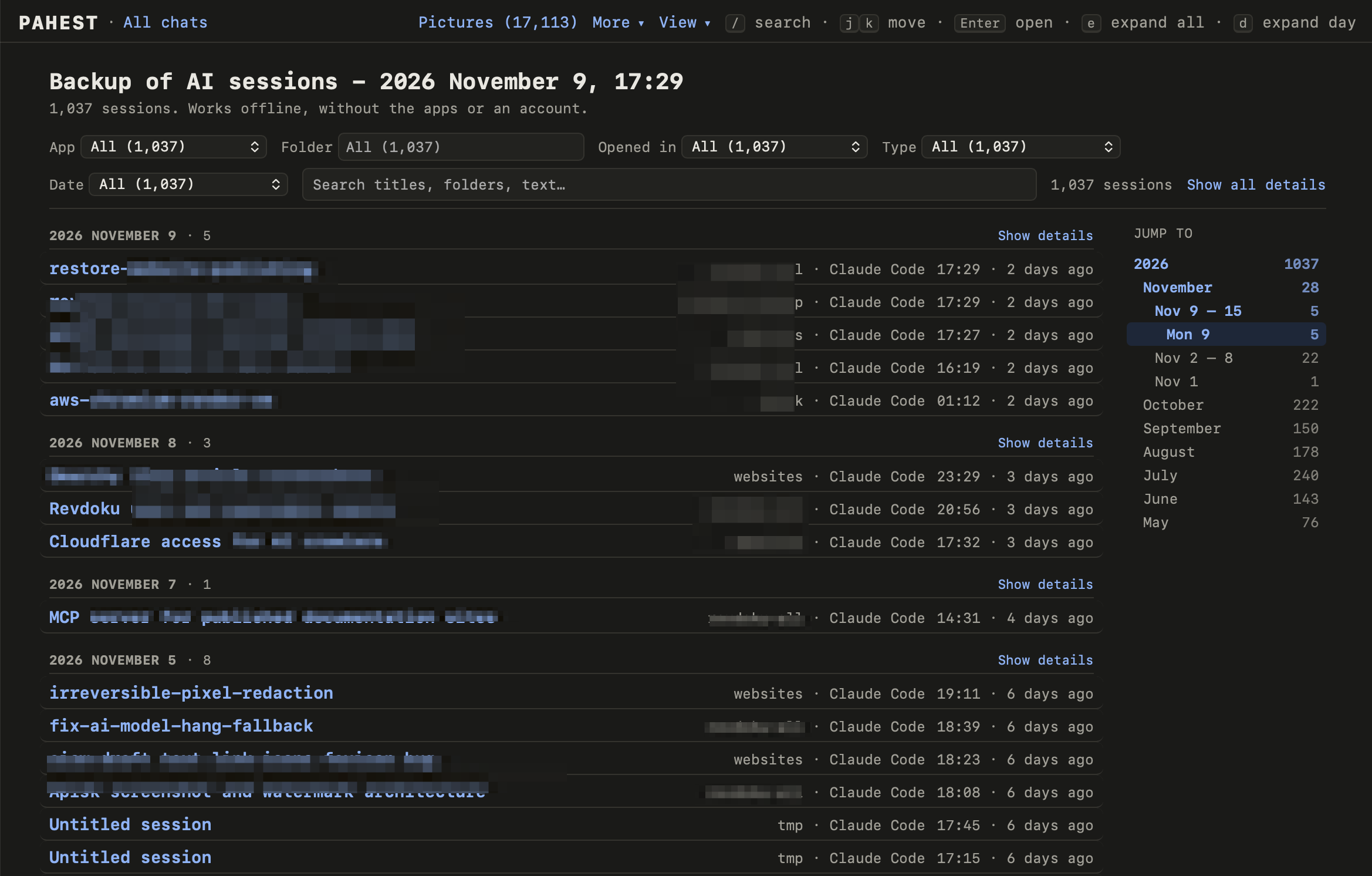
Pahest makes a local backup of your sessions with Claude Code and Codex on a Mac. A session is one conversation with the AI. Pahest also makes web pages from the backup, so you can read and search your sessions offline.
*Pahest* is the Armenian word պահեստ (say “pa-HEST”). It means “reserve”.
 ## The apps
| App | What Pahest saves |
| --- | --- |
| Claude Code (terminal and desktop app) | The sessions, the pasted pictures and your settings. |
| Codex (terminal, code editor extension and ChatGPT desktop app) | The sessions, the pictures and your settings. |
| Claude desktop app | The Cowork files and the settings of the app. |
[What a backup holds](/backup-content) has the full list.
## Before you start
- Pahest does not back up your projects. It saves the sessions, not the code and the documents in your project folders.
- Pahest only reads the files of the apps. It does not change them.
- Pahest does not connect to the internet.
- Pahest does not save your chats on claude.ai and chatgpt.com. They are not on your Mac.
- Pahest is free and open source (MIT license). It is not affiliated with Anthropic or OpenAI.
## Start
Install Pahest with Homebrew.
Run one command and answer one question.
Search and filter your sessions.
# Install
Source: /install.md
Pahest runs on macOS only. You install it with [Homebrew](https://brew.sh).
## Install Pahest
Press Cmd+Space, type `Terminal`, and press Enter.
Paste this command and press Enter:
```sh
brew install pahest/pahest/pahest
```
Type this command and press Enter:
```sh
pahest --version
```
Pahest prints its version:
```text
pahest 0.1.3
```
## Update Pahest
To get the newest version, run this command:
```sh
brew upgrade pahest
```
An update does not change your backups. To give the pages of a backup the new look, [rebuild the pages](/commands#rebuild-the-pages).
# Make your first backup
Source: /first-backup.md
A backup is one command and one answer. This page shows a real run on a Mac with about 1,050 sessions. Only the user name is changed, to `you`.
## Start Pahest
Open the Terminal app, type `pahest`, and press Enter. Pahest shows the start screen. It copies nothing before you answer its question.
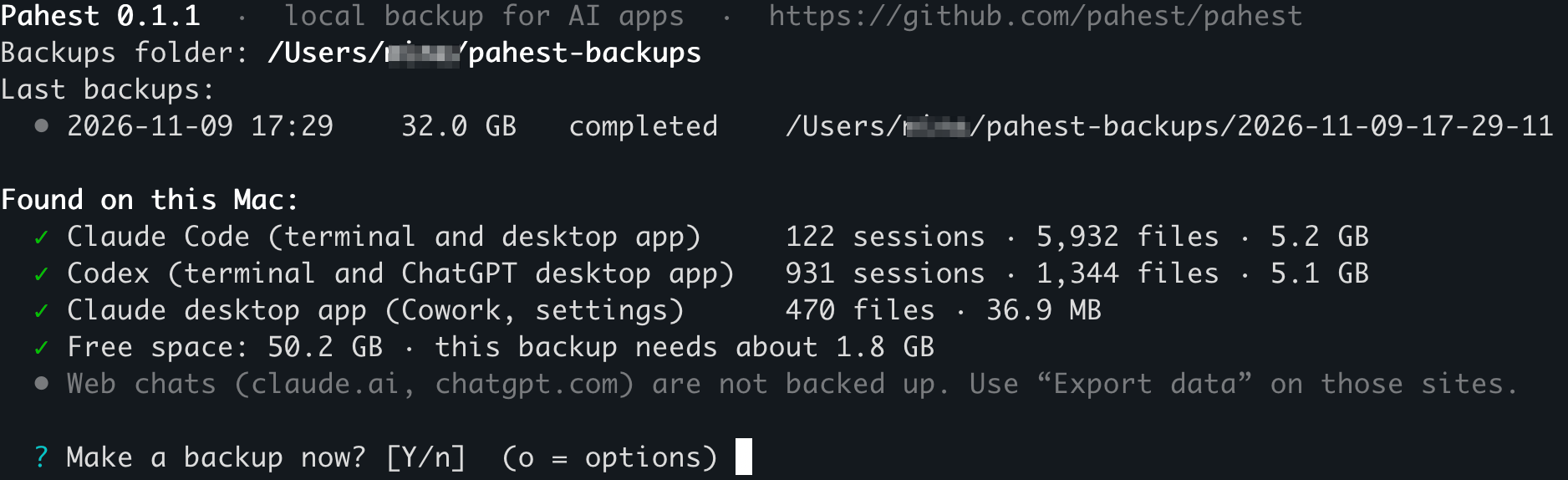 | Line | What it tells you |
| --- | --- |
| `Backups folder` | The folder for your backups. |
| `Last backups` | Your last backups, with the time, the size and the result. |
| `Found on this Mac` | Each app that Pahest can back up, with the number of its sessions and files. |
| `Free space` | The free space on the disk, and the minimum new space for this backup. |
## Answer the question
| Key | Result |
| --- | --- |
| Enter, or `y` | The backup starts. |
| `n` | Pahest stops and prints `Cancelled. Nothing was backed up.` |
| `o` | Pahest shows the [options](/commands#the-options-at-the-question). |
## Read the result
Press Enter. Pahest shows its progress for each app and asks no more questions. These are the first and the last lines of the run:
```text
? Make a backup now? [Y/n] (o = options)
• The backup starts now. Press Ctrl+C to stop it at any time; what is saved by then is kept.
── Claude Code ─────────────────────────────────────────────────────────────────────────────────────
Claude Code ████████████████████████ 100% 5,984/5,984 5.3 GB/5.3 GB
✓ local sessions: ok · 124 sessions · 5,984 files · 5.3 GB
→ /Users/you/pahest-backups/2026-11-11-19-23-42/claude-code
…
── Verification ────────────────────────────────────────────────────────────────────────────────────
Verifying ████████████████████████ 100% 29,636/29,636 32.7 GB/32.7 GB
✓ 29,636 files (32.7 GB) read back and matched; 698 JSON, 1,667 JSONL, 931 compressed, 5 databases, 17,704 images checked
── Done ────────────────────────────────────────────────────────────────────────────────────────────
✓ Backup completed in 23:21: 29,637 files, 32.7 GB (3.7 GB written in full, the rest stored as clones).
Backup folder: /Users/you/pahest-backups/2026-11-11-19-23-42
Your chats: file:///Users/you/pahest-backups/2026-11-11-19-23-42/index.html
Report: file:///Users/you/pahest-backups/2026-11-11-19-23-42/report.html
All backups: file:///Users/you/pahest-backups/logs/index.html
To open a link, hold Cmd and click it (in Apple's Terminal: hold Cmd and double-click).
```
This run took 23 minutes because the Mac did other work at the same time.
The first line of the part `Done` gives the result:
| Text | Meaning |
| --- | --- |
| `Backup completed` | The backup has all files and no problems. |
| `Backup completed with problems` | A part is missing. See [Problems and limits](/problems#the-backup-completed-with-problems). |
## Open your sessions
Hold Cmd and click the address in the line `Your chats`. In the Terminal app from Apple, hold Cmd and double-click it. The list of your sessions opens in your browser.
You can also open the page from Finder:
1. Run `open ~/pahest-backups`.
2. Open the folder with the newest date.
3. Double-click `index.html`.
[Find a session](/sessions) shows what you can do on that page.
## Stop a backup
Press Ctrl+C. Pahest stops and keeps the files that it saved before you stopped it. It adds `-interrupted` to the name of that backup folder. To get a full backup, run `pahest` again.
## Make the next backup
Run `pahest` again. Each run makes a new, full backup in a new folder. The name of the folder is the date and time of the start.
# Find a session
Source: /sessions.md
The first page of a backup is `index.html` in the backup folder. It lists every session from every app.
## Read the list
The list shows the newest sessions first, in groups by day. Each session has one line with the title, the folder, the app and the time.
- Click the title to open the session.
- Click **Show details** next to a day to see the start of the first message and the tags of each session.
- Click a folder, an app or a tag to show only the sessions that have it. Click it again to show all sessions.
## Search
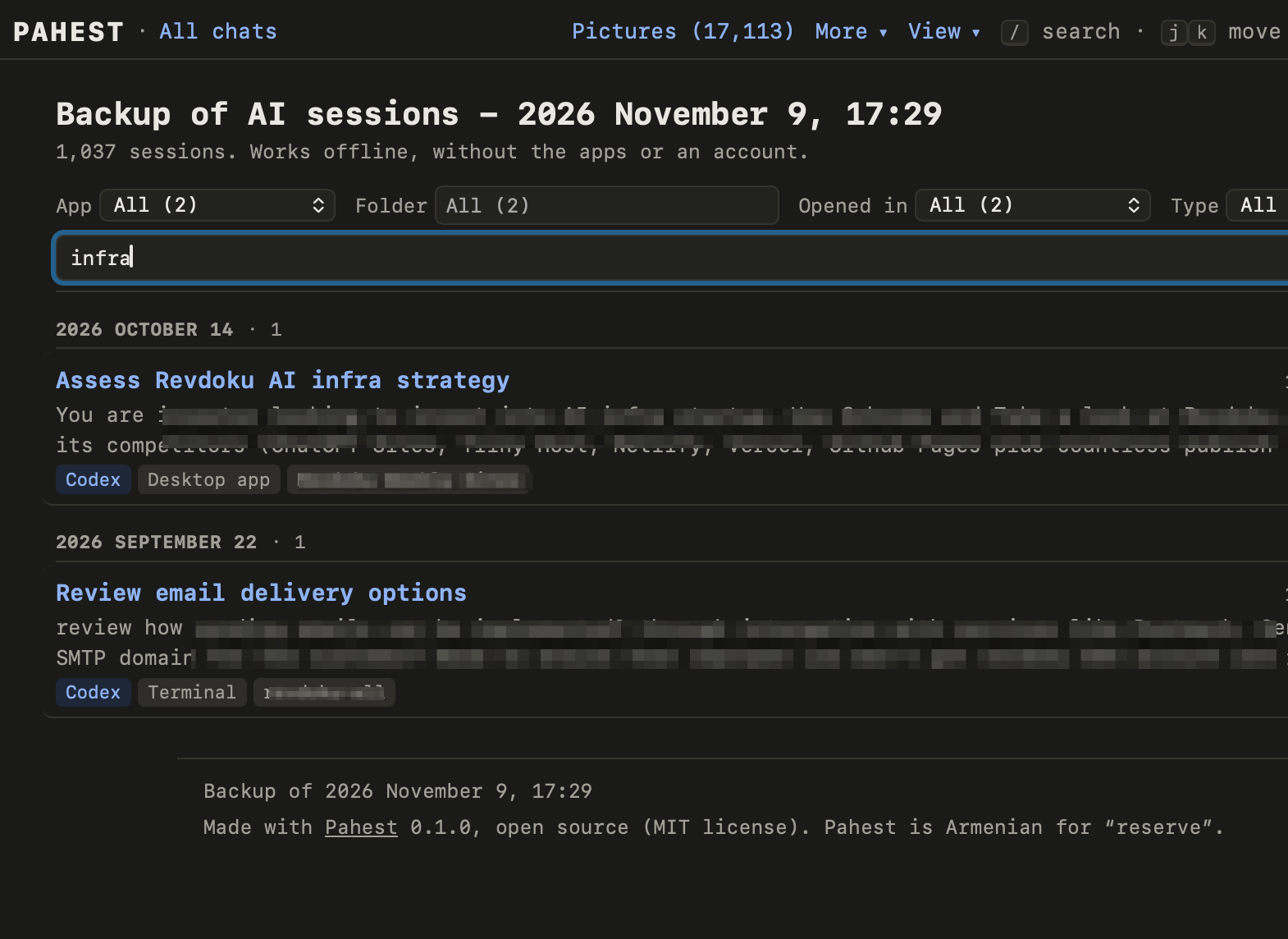
Type words in the search box. The list then shows only the sessions that have these words in the title, in the folder, or in the start of the conversation.
 ## Filter the list
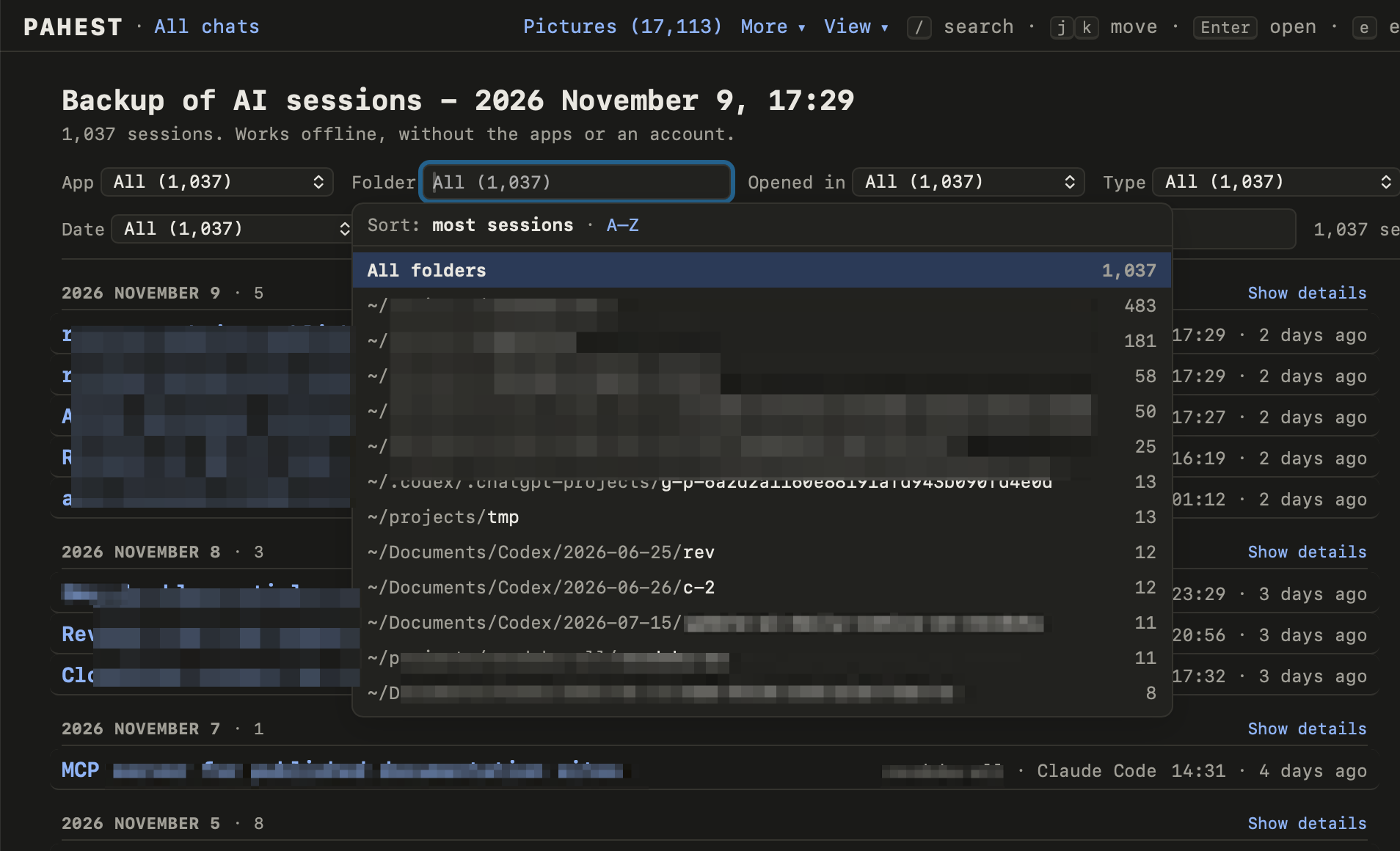
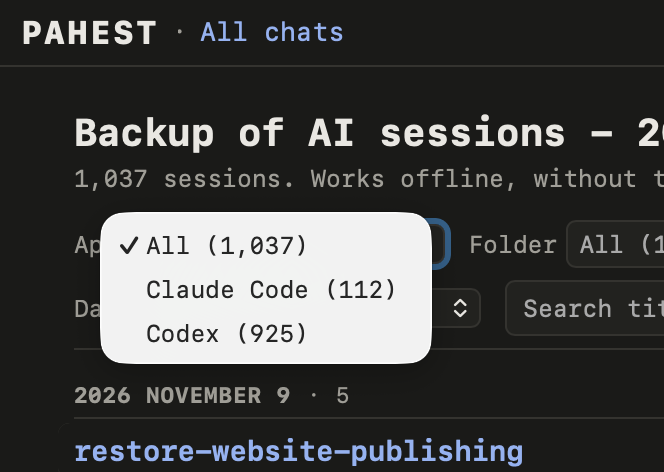
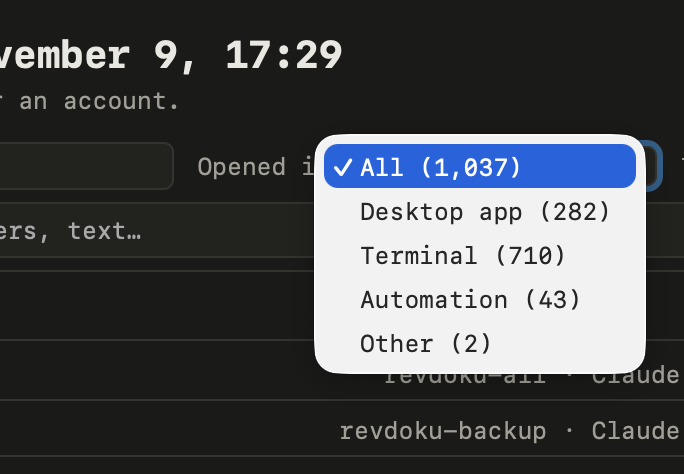
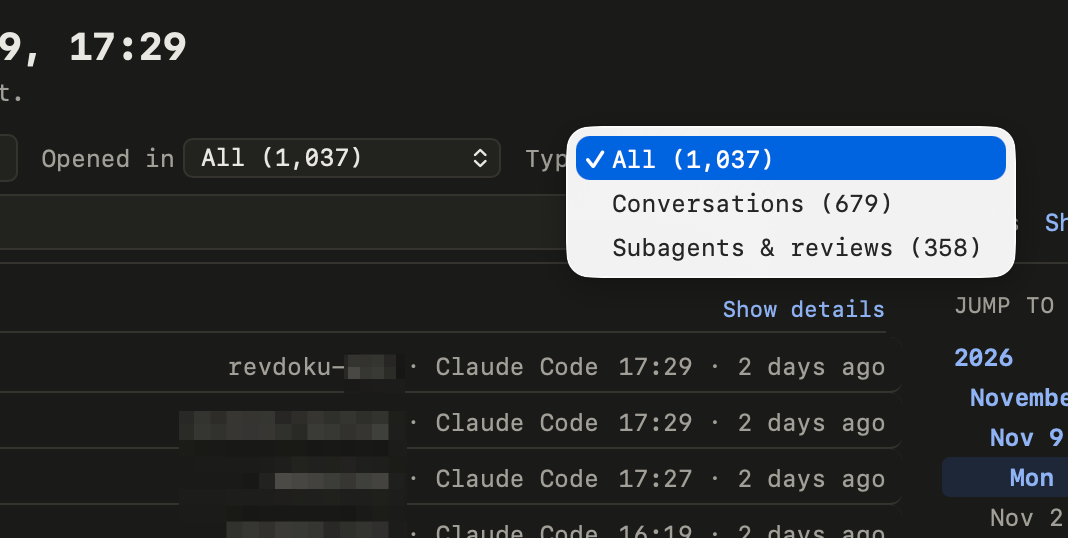
Five filters are above the list. You can use more than one filter, and you can use them together with the search box. **Reset** clears all the filters and the search.
| Filter | Choices |
| --- | --- |
| **App** | Claude Code, Codex or Claude desktop. |
| **Folder** | The project folder of the session. Type a part of the path, or choose a folder from the list. |
| **Opened in** | Desktop app, Terminal, Code editor, or Automation. Automation means that another program started the session. |
| **Type** | Conversations with you, or subagents and reviews. A subagent is a session that an app started by itself. |
| **Date** | Today, Yesterday, Last 7 days, Last 30 days, or Year to date. |
 ## Go to a date
On a wide window, **Jump to** at the right lists the years, the months, the weeks and the days. Click a line to go to that date.
## Use the keyboard
| Key | Result |
| --- | --- |
| `/` | Go to the search box. |
| `j` and `k`, or the down and up arrows | Move through the list. |
| Enter | Open the selected session. |
| `e` | Show or hide the details of every day. |
| `d` | Show or hide the details of the selected day. |
## The top bar
Every page of a backup has the same bar at the top:
| Part | Result |
| --- | --- |
| **All chats** | Goes to the list of all sessions. |
| **Pictures** | Opens the [Pictures page](/pictures). |
| **More** | Opens the other pages of the backup: the backup report, the text that you typed in each app, and the Codex databases. |
| **View** | Sets the colors (**Auto**, **Light** or **Dark**) and the font (**Mono**, **Sans** or **Serif**). |
On a session page, the name of the app in the bar opens the list of that app.
# Read a session
Source: /session-page.md
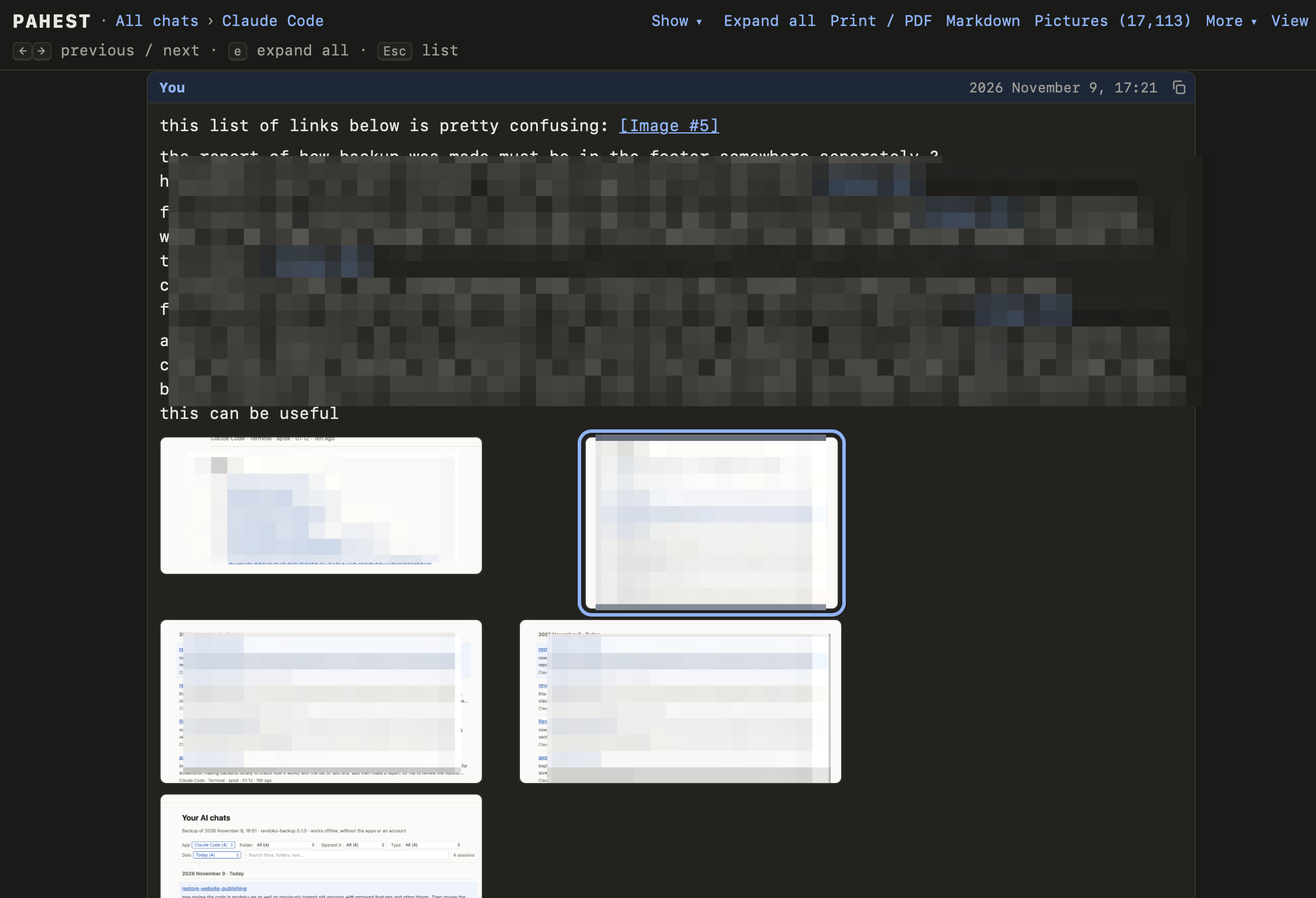
Each session has its own page. The page shows the full conversation: your messages, the answers, the tool calls and the pictures.
 ## The top of the page
Under the title, the page shows facts about the session: the app, the folder, the Git branch, the times, the model and the version of the app. **In this backup** is a link to the raw transcript. The raw transcript is the session file of the app, without a change.
## The conversation
The page shows each part of the conversation as a block:
- Your messages have the label **You**.
- Each answer of the AI is one block.
- The thinking of the AI is folded. Click it to open it.
- Each tool call is a card with its result. A tool call is a command, a file edit or a search that the AI made.
- Text that the app added is folded under **Added by Claude Code** or **Added by Codex**.
Long messages, results and code blocks are folded. Click **Expand** to see one in full. To open all blocks, click **Expand all** in the top bar or press `e`.
Click a picture to see it large. Press Esc to close it.
## Show only some parts
The **Show** menu in the top bar chooses what the page shows:
- **Your messages**
- **AI answers**
- **Thinking**
- **Tool calls and results**
- **Added by the app**
- **Pictures**
The menu also has three quick choices: **Only my messages**, **Conversation only** and **Everything**. The page keeps your choice for the next sessions. Print and copy use your choice too.
## Copy, print and Markdown
| To do this | Do this |
| --- | --- |
| Copy a message or a code block | Point at it and click its copy button. |
| Print the session, or save it as a PDF | Click **Print / PDF** in the top bar, or press Cmd+P. |
| Open the session as a Markdown file | Click **Markdown** in the top bar. |
## Move between sessions
**← Previous** and **Next →** open the previous and the next session of the list that you came from. **↑ List** goes back to the list, with your filters.
| Key | Result |
| --- | --- |
| Left and right arrows, or `k` and `j` | Open the previous or the next session. |
| `e` | Open or close every folded block. |
| Esc | Go back to the list. |
# See all pictures
Source: /pictures.md
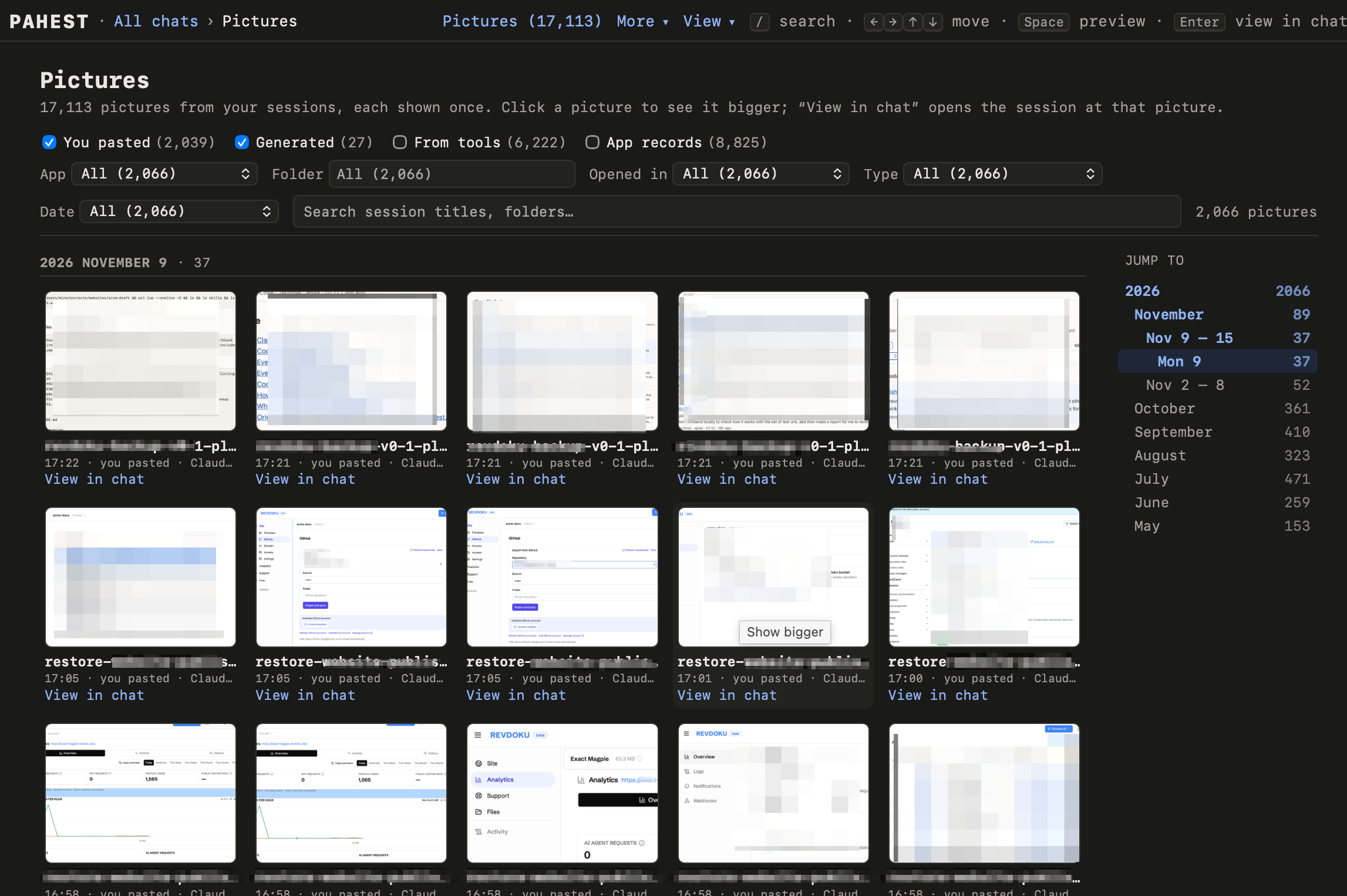
The Pictures page shows every picture from every session. To open the page, click **Pictures** in the top bar of a page.
 ## Choose the pictures
Four checkboxes choose the kinds of pictures. The page starts with **You pasted** and **Generated**.
| Checkbox | Pictures |
| --- | --- |
| **You pasted** | Pictures that you pasted into a session. |
| **Generated** | Pictures that the AI made. |
| **From tools** | Pictures that the AI looked at, for example a screenshot from a tool. |
| **App records** | Pictures from the records of the app, for example the browser screenshots of Codex. |
The page also has the filters and the search box of the list of sessions. [Find a session](/sessions) shows how to use them.
## Look at a picture
- Click a picture to see it large.
- Press the left or the right arrow key to go to the previous or the next picture.
- Press Space or Esc to close the picture.
- Click **View in chat** to open the session at that picture.
## Use the keyboard
| Key | Result |
| --- | --- |
| `/` | Go to the search box. |
| Arrow keys | Move from picture to picture. |
| Space | Show the selected picture large, or close it. |
| Enter | Open the session at the selected picture. |
# Commands
Source: /commands.md
Pahest is one command, `pahest`. Without an option, it asks one question and then makes a backup.
## The commands
| Command | Result |
| --- | --- |
| `pahest` | Shows the start screen, asks one question, makes a backup and writes a report. |
| `pahest --profile` | Makes a backup without questions, with the answers that you saved as `default`. |
| `pahest --profile NAME` | The same, with the answers that you saved as `NAME`. |
| `pahest --regenerate` | Rebuilds the pages of the newest backup. Makes no new backup. |
| `pahest --regenerate FOLDER` | Rebuilds the pages of the backup in `FOLDER`. |
| `pahest --templates` | Shows the folder with the templates of the pages. You can edit the templates, then rebuild the pages. |
| `pahest --version` | Shows the version of Pahest. |
| `pahest --help` | Shows the help text. |
## The options at the question
A run without `--profile` asks `Make a backup now?`. If you press `o` and Enter, Pahest shows three options:
```text
? Make a backup now? [Y/n] (o = options) o
Options:
r Rebuild the web pages and reports of the last backup (2026-11-11-19-23-42). No new backup is made.
f Choose another backups folder.
s Save these answers, for runs without questions (pahest --profile).
? Your choice (Enter = go back):
```
| Key | Result |
| --- | --- |
| `r` | Rebuilds the pages of the last backup. This option shows only when you have a backup. |
| `f` | Asks for another backups folder. See [Use another folder or disk](/backups-folder). |
| `s` | Saves your answers as a profile. |
| Enter | Goes back to the question. |
## Run without questions
A profile is a file that holds your answers. With a profile, Pahest makes a backup without a question, so a script can start it. Pahest has no scheduler.
Run `pahest` and wait for the question.
If you want another backups folder, choose it first. See [Use another folder or disk](/backups-folder).
Press `o`, then Enter. Then press `s`, then Enter.
Press Enter to use the name `default`, or type a name.
Pahest saves the profile and asks the question again:
```text
? Your choice (Enter = go back): s
? Profile name [default]:
✓ Saved /Users/you/pahest-backups/profiles/default.json
Run it later with: pahest --profile
? Make a backup now? [Y/n] (o = options) n
• Cancelled. Nothing was backed up.
```
To make a backup with the profile, run one of these commands:
```sh
pahest --profile
pahest --profile nightly
```
The start screen then has a line for the profile, and the backup starts immediately:
```text
Pahest 0.1.3 · local backup for AI apps · https://github.com/pahest/pahest
Backups folder: /Users/you/Documents/pahest-backups
Last backups: none yet.
Profile: default (/Users/you/pahest-backups/profiles/default.json)
```
A run with a profile stops before the backup if it cannot use the backups folder, or if the disk has too little free space. The exit code is then `2`.
## Rebuild the pages
A rebuild makes the pages of a backup again with your version of Pahest. It makes no new backup. Use it after an update of Pahest, or after you change a template.
You have two ways to start a rebuild:
- At the question of `pahest`, press `o`, then Enter. Then press `r`, then Enter.
- Run `pahest --regenerate`. To rebuild an older backup, add its folder: `pahest --regenerate ~/pahest-backups/2026-11-09-17-29-11`.
This is the output of a rebuild of a backup with about 1,050 sessions:
```text
Pahest 0.1.3 · local backup for AI apps · https://github.com/pahest/pahest
Rebuilding the pages of a backup.
Backup: /Users/you/pahest-backups/2026-11-11-19-23-42
made 2026-11-11 19:23:42 with pahest 0.1.3; status: completed
── Rebuild the pages ───────────────────────────────────────────────────────────────────────────────
• Claude Code sessions…
• Claude desktop local sessions…
• Codex sessions…
• Web pages (index.html)…
── Verification ────────────────────────────────────────────────────────────────────────────────────
✓ 20,905 files written and read back (20,905 the same as before, they take no new disk space); checksums.sha256 updated
── Done ────────────────────────────────────────────────────────────────────────────────────────────
✓ Pages rebuilt in 3:27.
Open: /Users/you/pahest-backups/2026-11-11-19-23-42/index.html
Report: /Users/you/pahest-backups/2026-11-11-19-23-42/report.html
```
A rebuild does not read the apps, and it does not change the files that Pahest copied from them.
## Exit codes
A script that runs Pahest can read its exit code:
| Code | Meaning |
| --- | --- |
| `0` | The backup is completed and has no problems. |
| `1` | The backup is completed, but it has problems. The report lists them. |
| `2` | You cancelled, or Pahest did not start. |
| `130` | You stopped the backup with Ctrl+C. |
# Use another folder or disk
Source: /backups-folder.md
Pahest puts your backups in `~/pahest-backups`, in your home folder. You can choose another folder.
## Choose the folder
Run `pahest` and wait for the question.
Press `o`, then Enter. Then press `f`, then Enter.
Type the full path of the folder and press Enter. The path can start with `~`, which is your home folder.
Pahest shows the free space of the new folder and asks the question again. Press Enter.
This output is from a test with one small session:
```text
? Make a backup now? [Y/n] (o = options) o
Options:
f Choose another backups folder.
s Save these answers, for runs without questions (pahest --profile).
? Your choice (Enter = go back): f
? Backup folder [~/pahest-backups] (Enter to keep): ~/Documents/pahest-backups
✓ Free space: 78.1 GB · this backup needs 33+ B
? Make a backup now? [Y/n] (o = options)
```
Your choice is for this run only. To keep the choice, [save a profile](/commands#run-without-questions) and run `pahest --profile`.
## Rules for the folder
Pahest accepts a folder only if these rules are true:
- The path is a full path, for example `~/Documents/pahest-backups` or `/Volumes/Backup/pahest-backups`.
- The parent folder exists. Pahest makes only the last folder of the path.
- The disk is connected, and you can write to the folder.
- The folder is not in the data of an app: `~/.claude`, `~/.codex`, `/Applications` or `~/Library`. Folders of iCloud Drive are permitted.
If Pahest cannot use the folder, it tells you the cause and asks again.
## A folder on another disk
On the disk of your home folder, a backup is fast and uses little new space. On another disk, Pahest copies each file in full. The backup then takes more time and uses its full size.
Pahest always keeps your profiles and the list of all runs in `~/pahest-backups`. Do not delete `~/pahest-backups` after you move the backups.
# What a backup holds
Source: /backup-content.md
Each backup is one folder of ordinary files in `~/pahest-backups`. The name of the folder is the date and time of the start, for example `2026-11-11-19-23-42`.
## What Pahest saves
| App | Folder on your Mac | What Pahest saves |
| --- | --- | --- |
| Claude Code | `~/.claude` | The sessions with their subagents and tool output. The text that you typed. Plans, to-do lists, file checkpoints and pasted pictures. Your settings, `CLAUDE.md`, skills, agents, commands and hooks. |
| Codex | `~/.codex` | The sessions and the archived sessions. The text that you typed. Pasted pictures, generated pictures and visualizations. The files of ChatGPT projects. The databases with the thread list, the goals and the memories. Your settings, `AGENTS.md`, rules and skills. |
| Claude desktop | The data folder of the app | The Cowork files, the Cowork disk image, and `claude_desktop_config.json`. |
Pahest does not copy the login files of the apps.
A new backup also keeps the sessions that an app deleted after an earlier backup. Thus the newest backup is the most complete one.
## The files of a backup
| File or folder | Content |
| --- | --- |
| `index.html` | The list of all sessions. Open this file first. |
| `report.html` | What Pahest saved, and the problems that it found. |
| `readable/` | The copies that you can read: one web page and one Markdown file for each session, and each picture as an image file. |
| `claude-code/`, `codex/`, `claude-desktop/` | The files of the apps, without a change. |
| `backup.log` | The text that Pahest printed during the run. |
| `checksums.sha256` | A checksum of each file. A checksum is a short code that changes when the file changes. |
| `source-manifest.jsonl` | The original path of each file on your Mac. |
| `deleted-at-source.txt` | The items that an app deleted and that this backup keeps. |
## Keep the backup private
A backup holds the text that you typed and pasted, and your settings files. The settings files can hold API keys.
- Do not put a backup in a shared folder.
- Do not send a backup folder to another person. Send only the page or the file that the person must have.
# Problems and limits
Source: /problems.md
The messages on this page are the real text that Pahest prints. Only the user name is changed, to `you`.
## The command is not found
The Terminal prints `zsh: command not found: pahest` when Pahest is not installed. [Install](/install) Pahest, open a new Terminal window, and run `pahest` again.
## Another run is in progress
```text
Another pahest run is still working (lock file /Users/you/pahest-backups/.pahest.lock). Try again later.
```
Pahest permits one run at a time.
1. Find the Terminal window of the other run.
2. Wait until that run stops.
3. Run `pahest` again.
## There is no terminal
```text
pahest asks questions before it starts, but there is no terminal to ask them in. Run it in a terminal, or use --profile to run with saved answers.
```
A script started `pahest`, and Pahest cannot ask its question. [Save a profile](/commands#run-without-questions), then use `pahest --profile` in the script.
## The profile is not found
```text
✗ profile "nightly" not found (/Users/you/pahest-backups/profiles/nightly.json). Run pahest once without --profile and answer "y" when it offers to save your answers.
```
No profile has this name. [Save a profile](/commands#run-without-questions) with this name.
## The backup folder cannot be used
Pahest prints the cause after the words `The backup folder cannot be used:`.
| Cause in the message | What to do |
| --- | --- |
| `does not exist; make that folder first` | Make the parent folder, then type the path again. |
| `the disk “Backup” is not connected` | Connect the disk, then run `pahest` again. |
| `cannot write to` | Choose a folder that you can write to. If macOS asks, permit access to the disk or folder. |
| `it is inside` | Choose a folder that is not in the data of an app. |
This is the message when the folder `Papers` does not exist:
```text
✗ The backup folder cannot be used: /Users/you/Papers does not exist; make that folder first, or choose another one
```
[Use another folder or disk](/backups-folder) has the rules for the folder.
## The disk is full
The `Free space` line of the start screen has a `✗` when the disk has too little free space. If the disk becomes full during a run, Pahest stops with this message:
```text
The backup disk is full (/Users/you/pahest-backups). The backup stopped; free some space and run it again.
```
1. Delete files, or an old backup folder. Keep the newest backup.
2. Run `pahest` again.
## The backup completed with problems
The last part of the run says `Backup completed with problems`, and the exit code is `1`.
1. Hold Cmd and click the `Report` address at the end of the run.
2. Read the part **Problems** of the report. It names each file or part.
3. Correct the cause, for example a folder that you cannot read.
4. Run `pahest` again.
## Claude Code deletes old sessions
The start screen can show this line:
```text
! Claude Code deletes sessions older than 30 days by default. Backups keep them, but to stop the deletion add "cleanupPeriodDays": 3650 to /Users/you/.claude/settings.json
```
Your backups keep these sessions if you make a backup before Claude Code deletes them. Pahest does not change the settings file. You can add the setting yourself.
## The pages look old after an update
An update of Pahest does not change the pages of your backups. [Rebuild the pages](/commands#rebuild-the-pages), then load the page again in the browser.
## A session is not in the list
Look at these causes in this sequence:
1. A filter or a search hides the session. Click **Reset**.
2. The session is a chat on claude.ai or chatgpt.com. These chats are not on your Mac.
3. The app deleted the session before your first backup.
## Limits
- Pahest runs on macOS only.
- Pahest does not back up your projects. Keep another backup for your project folders.
- Pahest saves only the files on your Mac. It does not save your chats on claude.ai and chatgpt.com, or sessions that run only on a server. Use **Export data** in the settings of Claude and of ChatGPT for these chats.
- A part of the reasoning of the AI is encrypted by Anthropic or OpenAI. Pahest keeps it, but you cannot read it.
- Pahest keeps the Cowork disk image of the Claude desktop app, but you cannot read its content without the app.
- Pahest has no scheduler. It makes a backup only when you or your script run it.
- Pahest has no command that puts a session back into an app.
## Get more help
Open an issue on GitHub: [github.com/pahest/pahest/issues](https://github.com/pahest/pahest/issues). Add the last lines of the output. Read them first, because they can show the names of your folders.